In this tutorial, you’ll learn how to integrate Votiro On-prem with Google Workspace (formerly G Suite).
Procedure
|
2. |
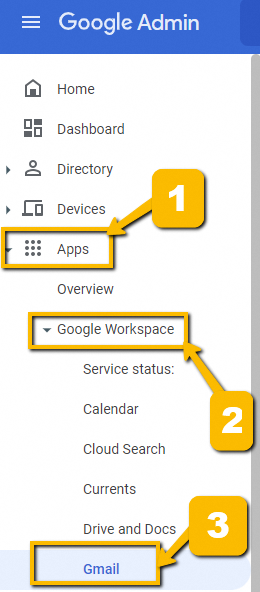
In the left pane, navigate to Apps > Google Workspace > Gmail
|
|
3. |
On the Settings for Gmail page, scroll down and select Spam, phishing, and malware
|
|
4. |
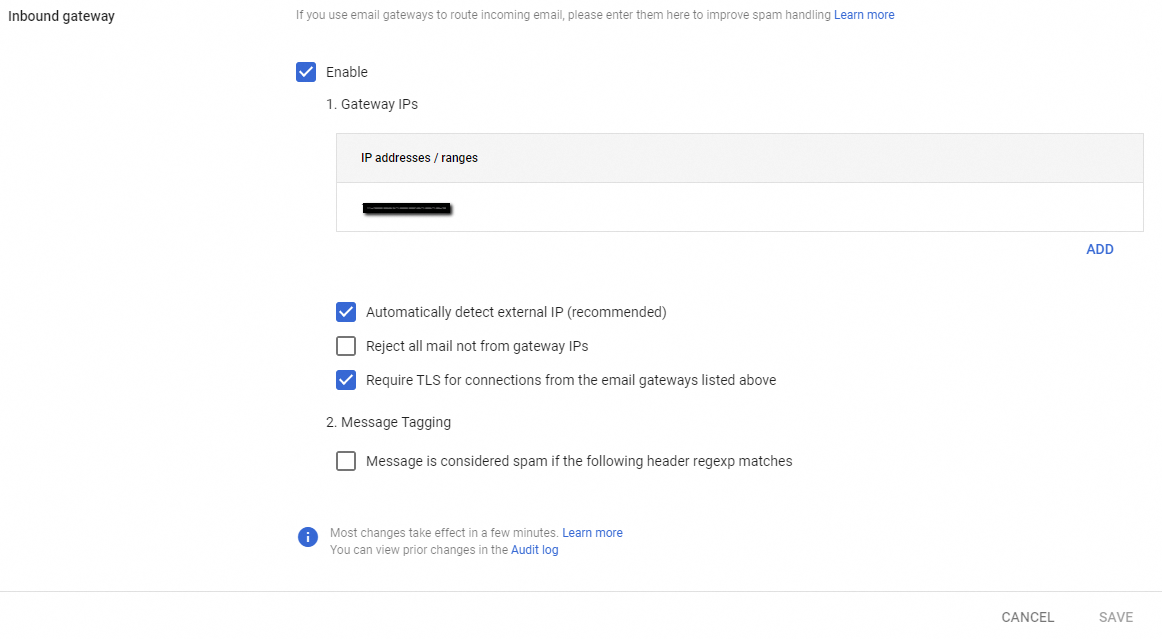
Move the cursor over Inbound gateway and click the pencil button to edit the settings: |
|
5. |
Enter the IP address provided by Votiro. |
|
6. |
Verify that the following boxes are checked: |
|
t |
Automatically detect external IP (recommended) |
|
t |
Require TLS for connections from the email gateways listed above |
Create a Host
|
8. |
Navigate back to Settings for Gmail and select Hosts. |

|
a. |
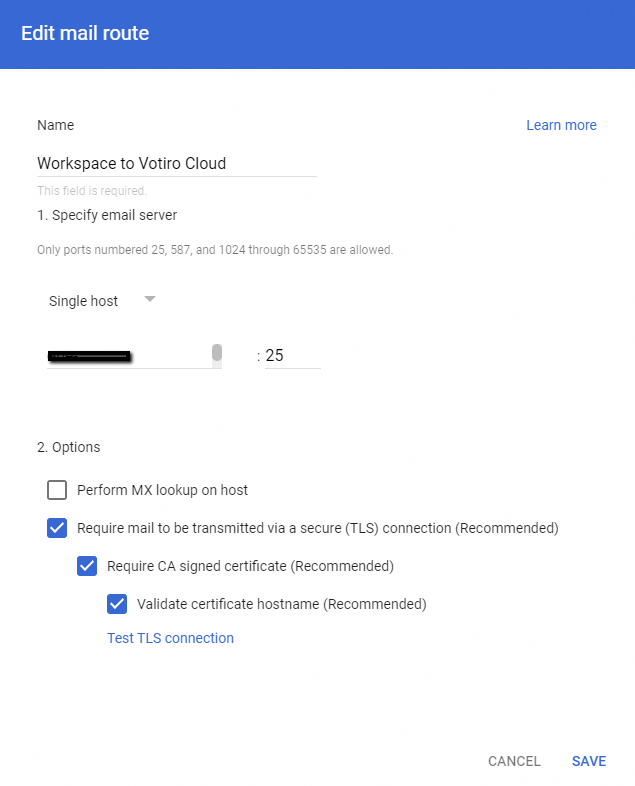
Type a name, for example: “Forward to Votiro Cloud”. |
|
b. |
For the option Specify email server, select Single host and type the host name provided to you by Votiro support. |
|
c. |
Check Require mail to be transmitted via secure (TLS) connection (Recommended). |
|
d. |
Check Require CA signed Certificate (Recommended). |
|
e. |
Check Validate certificate hostname (Recommended). |
|
f. |
Click on Test TLS connection: |

Configure content compliance rule for emails received from Votiro On-prem
|
10. |
Return to Settings for Gmail and select Compliance: |

|
11. |
Under Content compliance, select CONFIGURE. |

|
a. |
Specify a name for the new rule, for example “To Votiro Cloud to Workspace” |
|
b. |
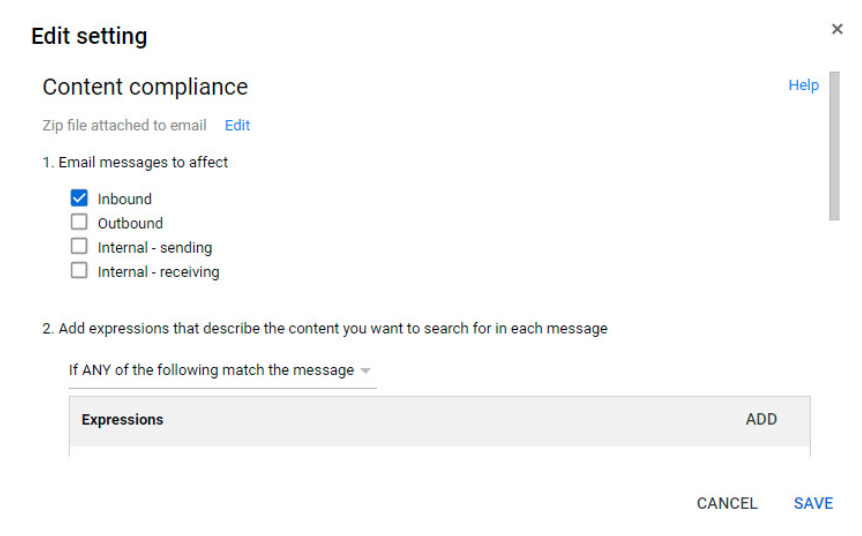
For Email messages to affect, check Inbound.
|
|
c. |
For Add expressions that describe the content you want to search for in each message, select If ANY of the following match the message and click ADD. |
|
d. |
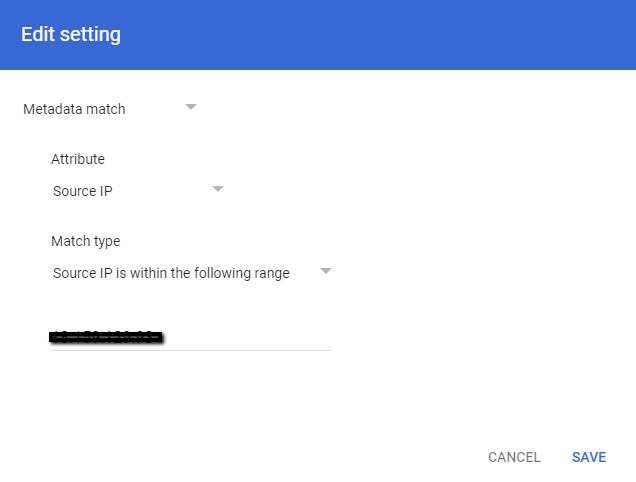
Select Metadata match, Attribute, Source IP and Match type. |
|
e. |
Select Source IP is within the following range and enter the IP addresses provided by Votiro support. |
|
g. |
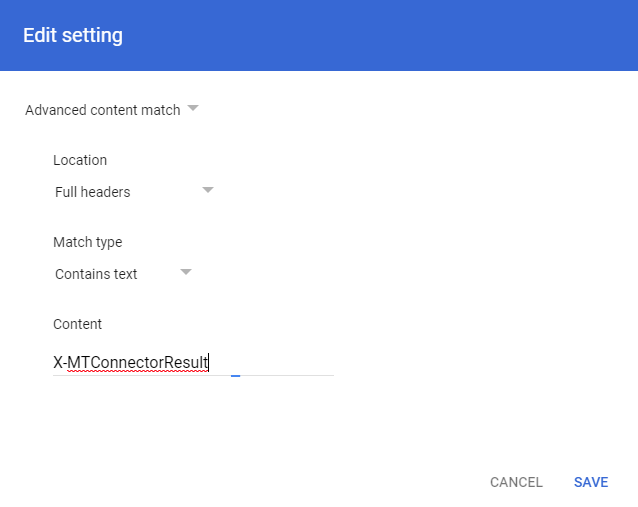
Add another expression, select Advanced content match, Location, Full headers, Match type, Contains text. |
|
h. |
In Content, enter "X-MTConnectorResult". |
|
j. |
For 3 - If the above expressions match, do the following: Under Route select Change route and make sure Normal routing is selected. |
|
k. |
Under Encryption, check Require secure transport (TLS).
|
|
i. |
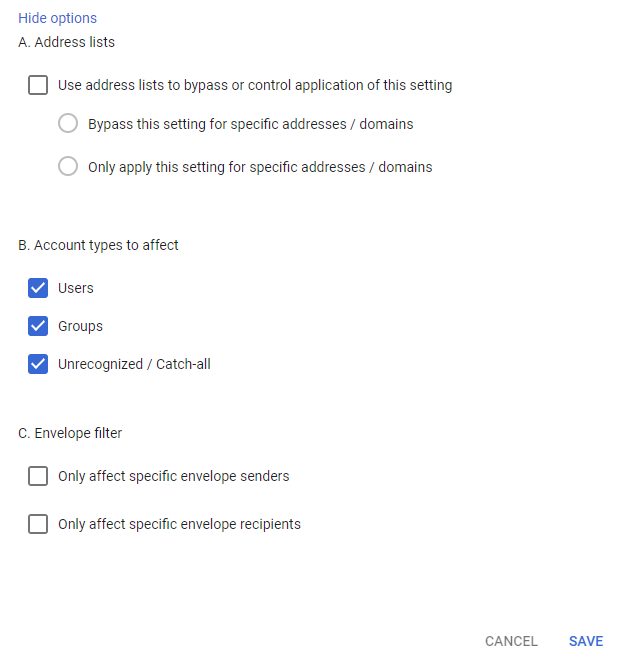
Under Account types to affect, check the following boxes: |
|
|
Unrecognized / Catch-all |
Configure Content compliance rule for emails sent to Votiro On-prem
|
12. |
By now, you should have one rule enabled for Content compliance. Click on ADD ANOTHER RULE for traffic sent from Google Workspace to Votiro On-prem. |
|
a. |
Specify a name, for example “Workspace to Votiro Cloud". |
|
b. |
Under Email messages to affect, check Inbound. |
|
c. |
For Add expressions that describe the content you want to search for in each message, select If ALL of the following match the message and click ADD, |
|
i. |
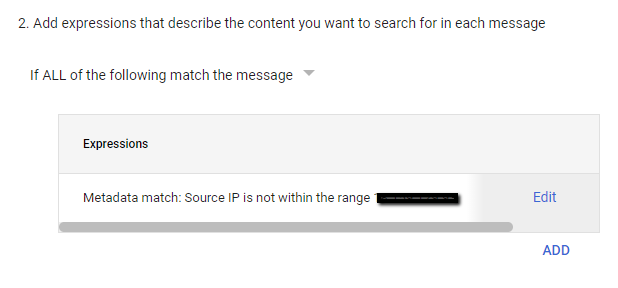
Select Metadata match, Attribute, Source IP and Match type. |
|
ii. |
Select Source IP is not within the following range and enter the IP addresses provided by Votiro support. |
|
d. |
For 3 - If the above expressions match, do the following: Under Route, select Change route and make sure “Forward to Votiro Cloud” is selected. |
|
e. |
Under Encryption, check Require secure transport (TLS). |
|
i. |
Under Account types to affect, check the following boxes: |
|
|
Unrecognized / Catch-all |
Note: It can take a while for the changes to be applied.
|
13. |
After the rules are successfully configured: |
|
b. |
Under Reporting > Email Log Search, see if the message was routed through Votiro’s Cloud instance. |
|
c. |
Verify you’re able to see the sanitized email in Votiro’s dashboard. |
Votiro Cloud for Sanitization
If incoming traffic is not from the IPs listed above, send it for sanitization.
|
14. |
Create a new rule "Sanitized Emails To Google Workspace". |
|
15. |
Under Email messages to affect, check Inbound. |
|
16. |
For Add expressions that describe the content you want to search for in each message, select If ANY of the following match the message and click ADD. |
|
17. |
For Advanced content match, select: |
|
a. |
Location: Full headers |
|
b. |
Match Type: Contains text: |
|
c. |
Content: X-MTConnectorResult |
|
18. |
For Metadata match, select: |
|
d. |
For Source IP is within the following range, enter the IP addresses provided by Votiro support. |
|
19. |
Under Route, select Change route and set to Normal Routing. |
|
20. |
Under Encryption (onward delivery only), check Require secure transport (TLS).
|
|
a. |
Under Account types to affect, check the following boxes: |
|
|
Unrecognized / Catch-all |
The result of these actions is that for any email with the X-MTConnectorResult header and originating from the listed IPs, it is routed to the user's mailboxes as usual, since it has been sanitized.
Spam Rule
|
23. |
Select Spam, phishing, and malware. |
|
24. |
Add a rule “Trusted Votiro Relay Servers”. |
|
25. |
Select Options to bypass filters and warning banners:
|
|
a. |
Bypass spam filters for internal senders |
|
b. |
Bypass spam filters for messages from senders or domains in selected lists |
|
26. |
Create a new list and name it "Votiro Relay Allow Addresses". |
|
27. |
Enter the IP addresses provided by Votiro support. |
Prevent Email Authentication Protocol Failures
To prevent email authentication protocol failures (DKIM, DMARC, and SPF), it is necessary to manually add Google's MX server prefix so that authentication checks are performed on the correct IP address of the originating sender.
This will prevent legitimate emails from being sent to your spam folder or flagged as suspicious.
To do so, follow the steps below:
|
1. |
In the Google Workspace Admin console, navigate to Menu > Apps > Google Workspace > Gmail > Spam, Phishing, and Malware. |
|
2. |
Select your top-level organization on the left, scroll to the Inbound gateway setting, then click Edit. |
|
3. |
Click Add and enter the IP range of the region. For example: 209.85.128.0/17 |
Note: Verify the IP range, as it may differ depending on the customer's location. Hint: Check the IP in the email header and look for similar here.
|
4. |
At the bottom, ensure that the Automatically detect external IP (recommended) box is checked. |
|
5. |
Save your changes and retest the configuration. |
How To Resolve Google's SPAM Email Alert On SaaS
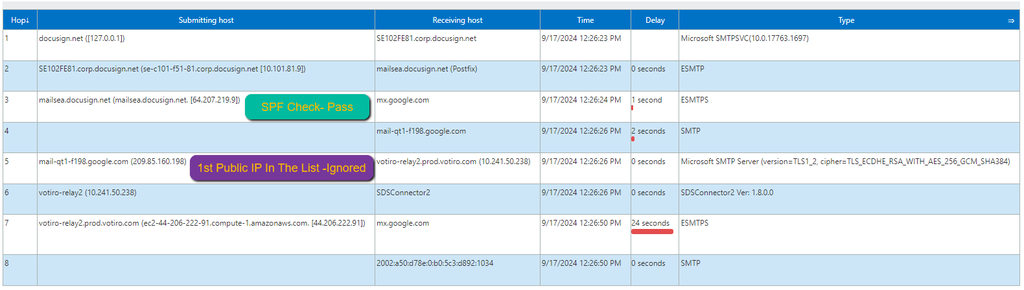
When utilizing Votiro's relay servers for SMTP traffic, our customers may encounter emails flagged as suspicious and in the “spam” folder. This occurs because the SPF (Sender Policy Framework) check fails, as Votiro's servers are not the original source IP that generated the email.
In this case, Gmail examines the "Received: from" message headers to identify the first public IP address not in the Gateway IP list and treats this IP address as the source IP for the message. This IP address is used for SPF authentication and spam assessment.
We must ensure that Google can continue to scan for the source IP received from the header in the flow to authenticate the source IP and not the first public IP address in the mail flow, as this is not the sender's source IP.
To address this issue, Google requires you to configure Votiro's servers as an inbound mail gateway. The instructions to do this are outlined in the article Set up an inbound mail gateway. A summary of these instructions as applied to Votiro are as follows:
|
1. |
In the Google Admin console, navigate to Menu > Apps > Google Workspace > Gmail > Spam, Phishing and Malware. |
|
2. |
Select your top-level organization on the left, scroll to the Inbound gateway setting, then click Edit. The Inbound gateway settings open on the page. |
|
3. |
Click Add and enter the IP range: 209.85.128.0/17 in the Add IP address/range box. Verify this range, as it may differ depending on the customer's location (Hint: Check the IP in the email header). |
|
4. |
At the bottom, ensure that the Automatically detect external IP—(Optional) box is checked. |
|
5. |
At the bottom, click Save. Note that the changes may take time before going into effect. |
|
6. |
Test the configuration again. |
To summarize, by ensuring that the IP range is on the "Inbound" list, we allow Google to scan the first public IP address that is NOT on the list.
Here is an example of how it should look when an SPF check passes from “DocuSign”.

Comments
0 comments
Please sign in to leave a comment.