Box
Votiro and Box
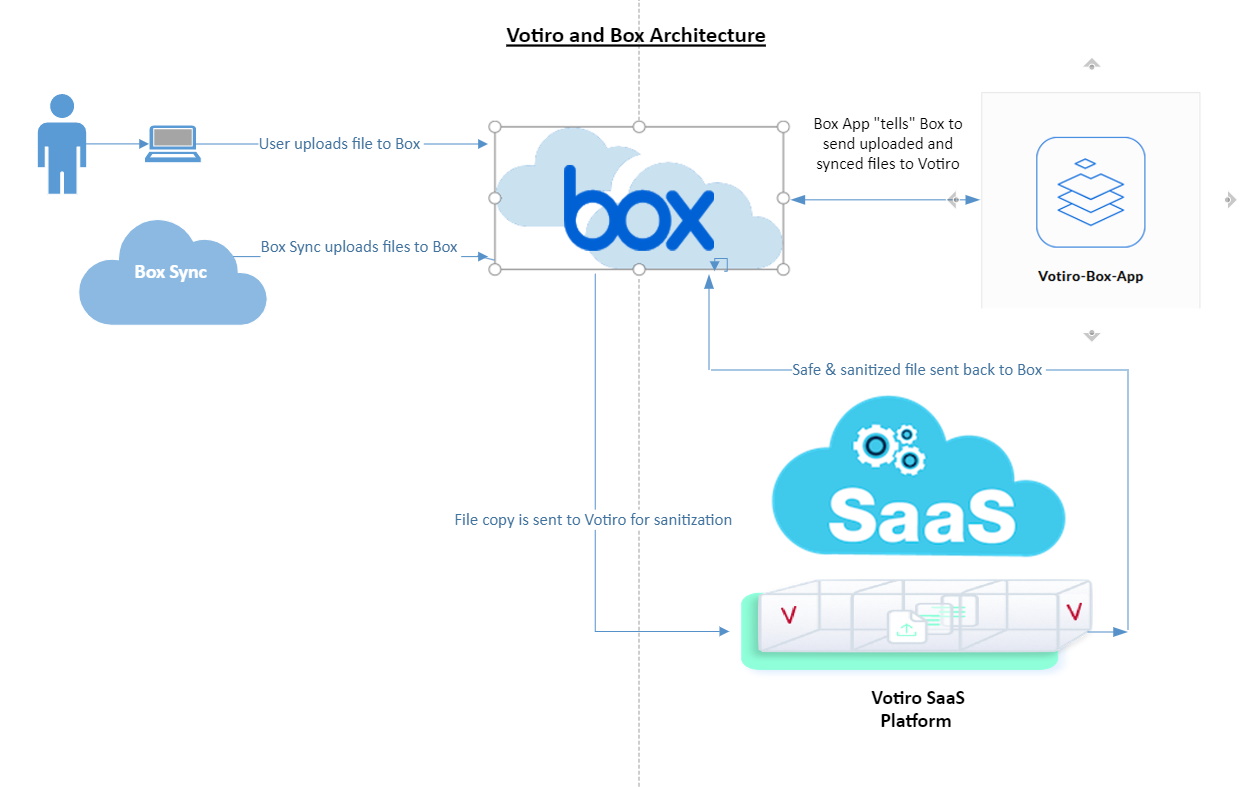
The diagram below describes the architecture of the Votiro - Box interface;
Configuration of an App in Box to Integrate with Votiro
|
1. |
Login to your Box.com account with Admin privileges. |
|
2. |
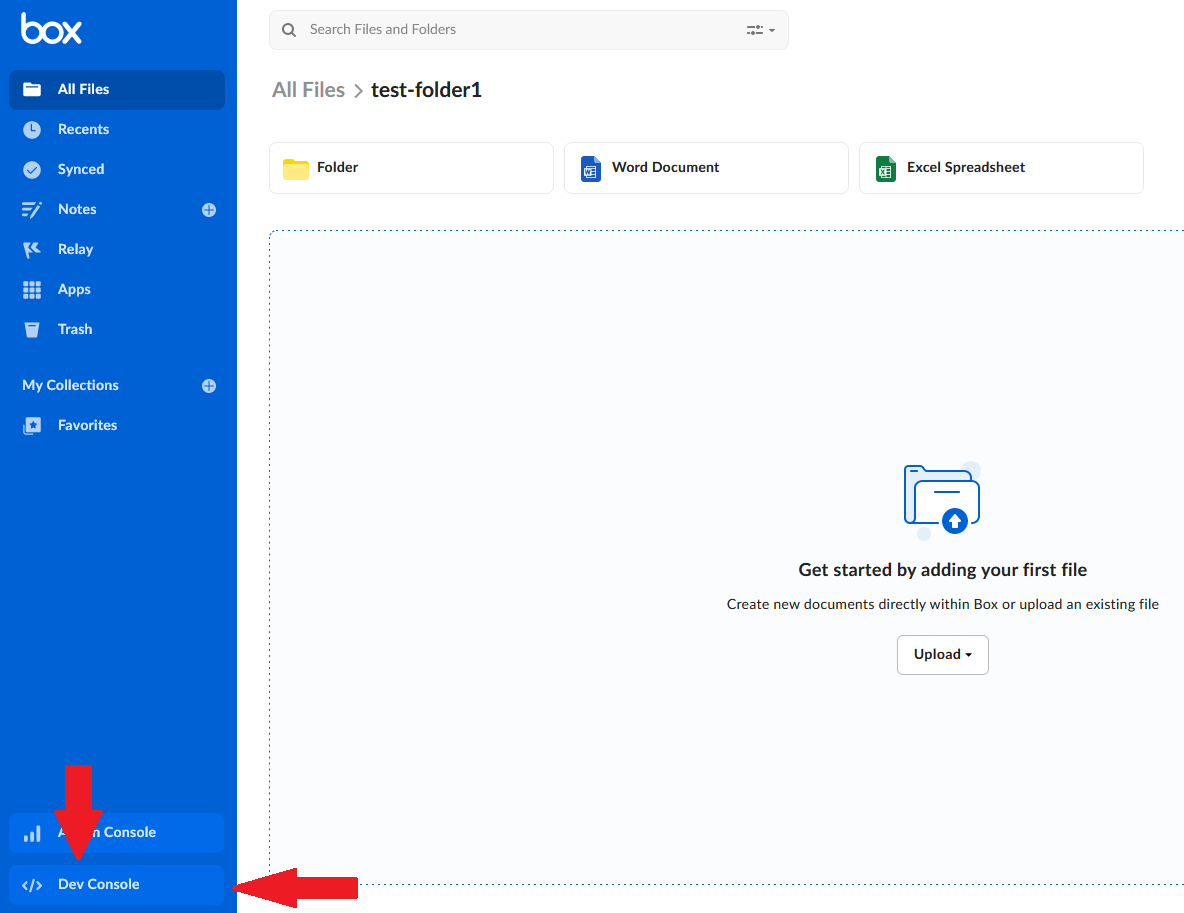
In the Box menu, select Dev Console (if you can’t find the button go to Dev Console). |
|
3. |
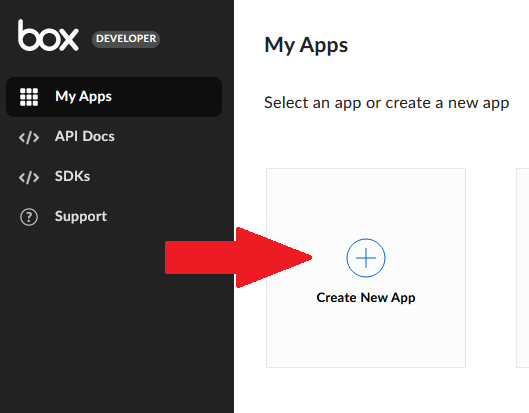
On the My Apps page, Click on theCreate New App button: |
|
5. |
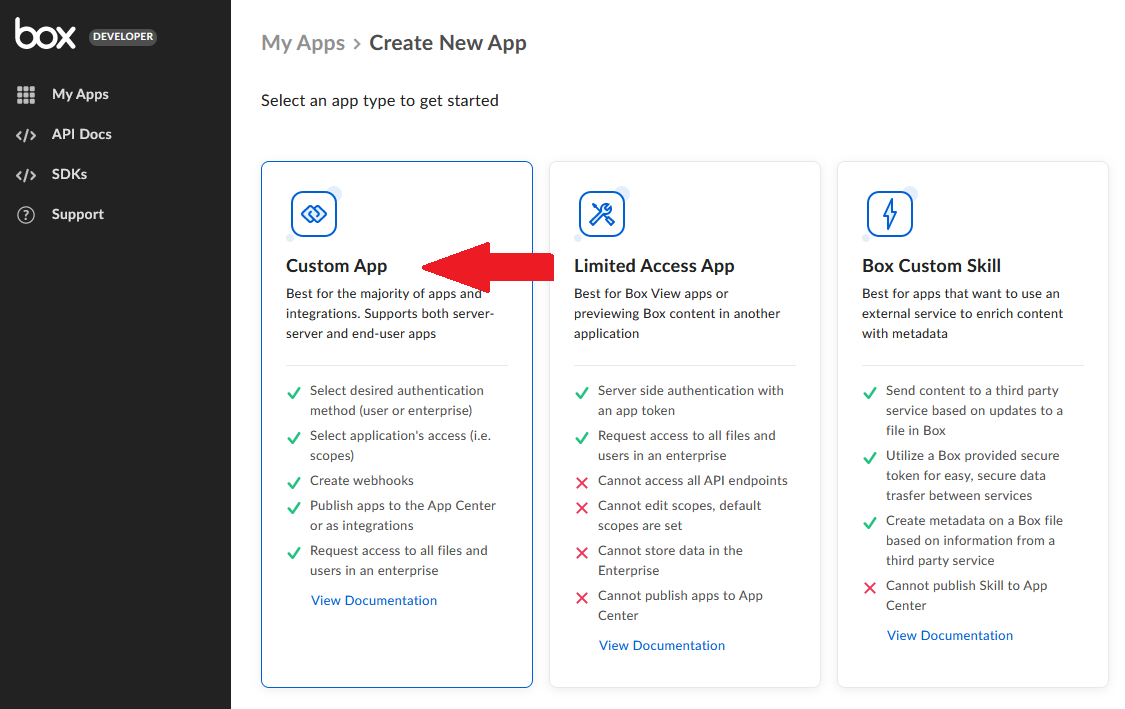
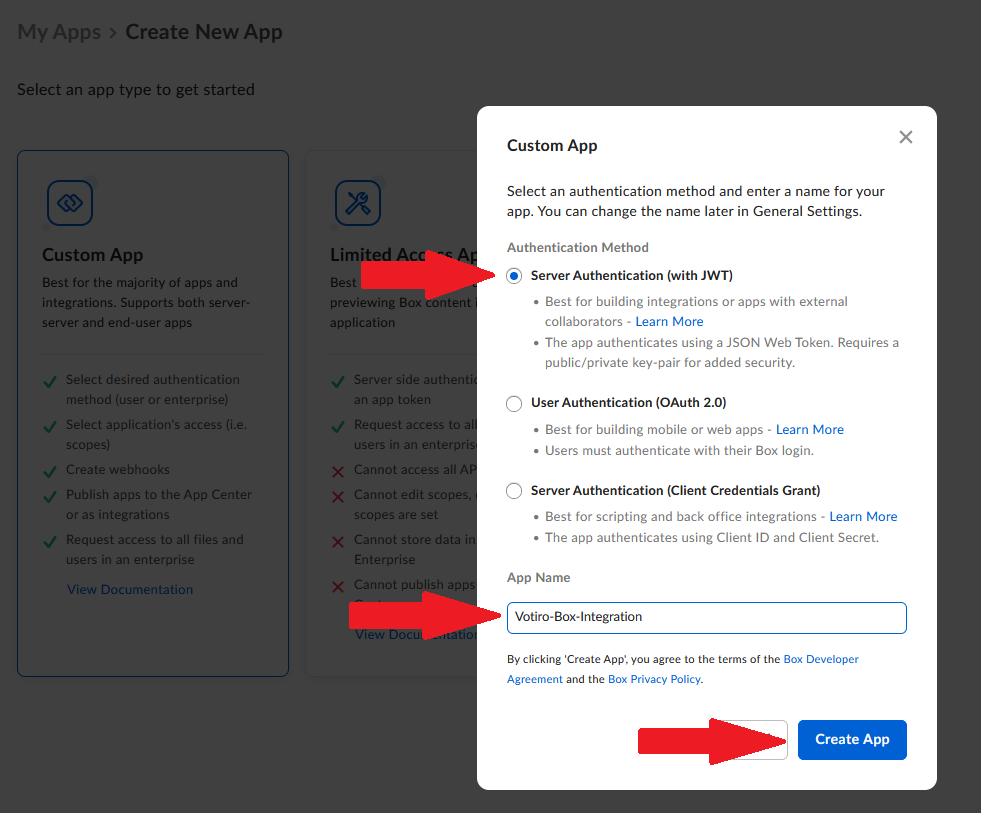
On the Custom App pane: |
|
a. |
Select the Authentication Method as Server Authentication (with JWT). |
|
b. |
Type in an App Name (for example, Votiro-Box-Integration). |
|
c. |
Click on the Create App button: |
|
6. |
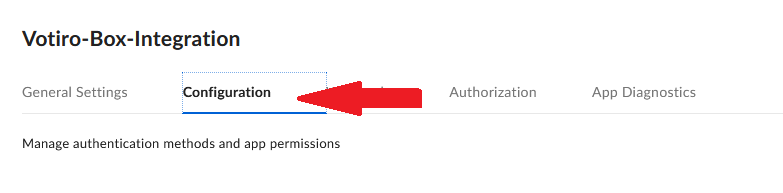
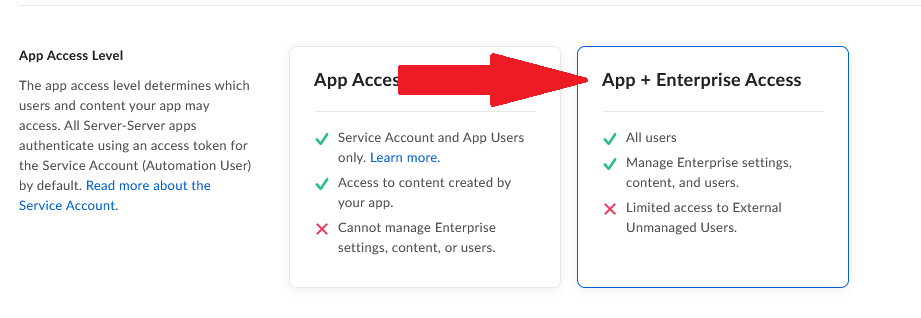
Select the Configuration tab, then select “App + Enterprise Access”: |
|
7. |
Select App + Enterprise Access. |
|
8. |
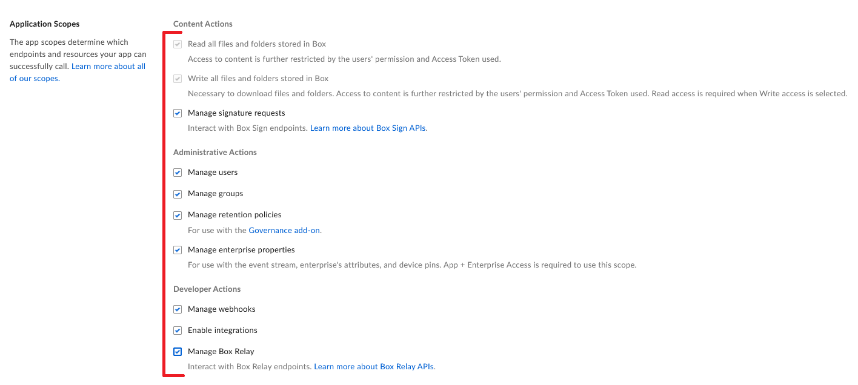
Make sure you check all the checkboxes under Application Scopes and Advanced Features: |

|
9. |
Click the Save Changes button: |

|
10. |
Scroll down to Add and Manage Public Keys and click on Generate a Public/Private Keypair (this step might require 2FA approval) and save the prompted JSON file to your machine: |
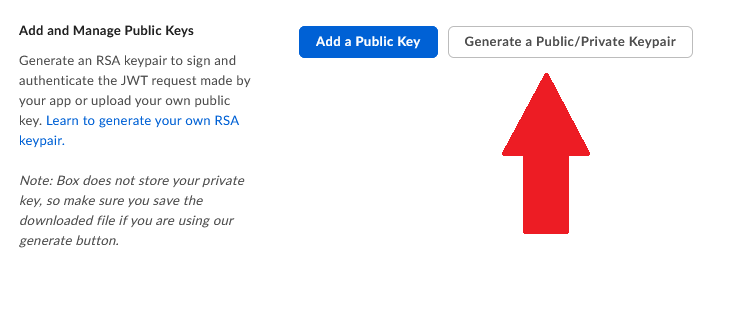
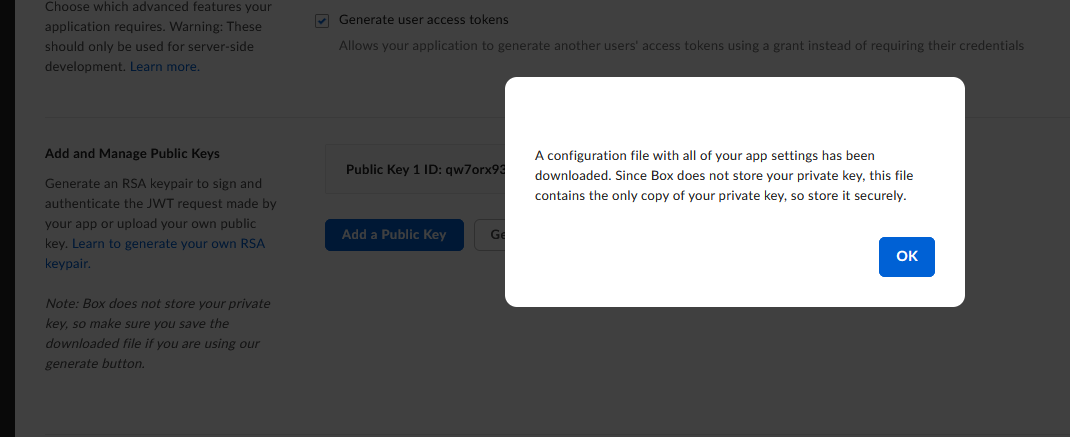
Note: If the JSON
file is not downloaded, click again on
Generate a Public/Private Keypair.
|
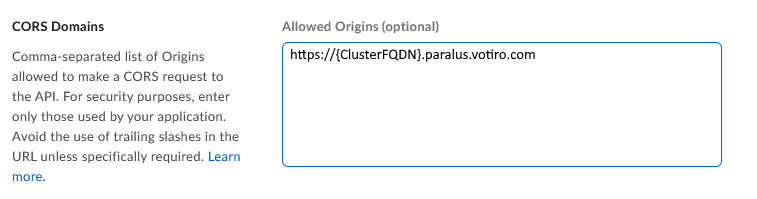
11.
|
Add the
Votiro
URL to the Allowed Origins section:
|
|
12. |
Click the Save Changes button again: |

|
13. |
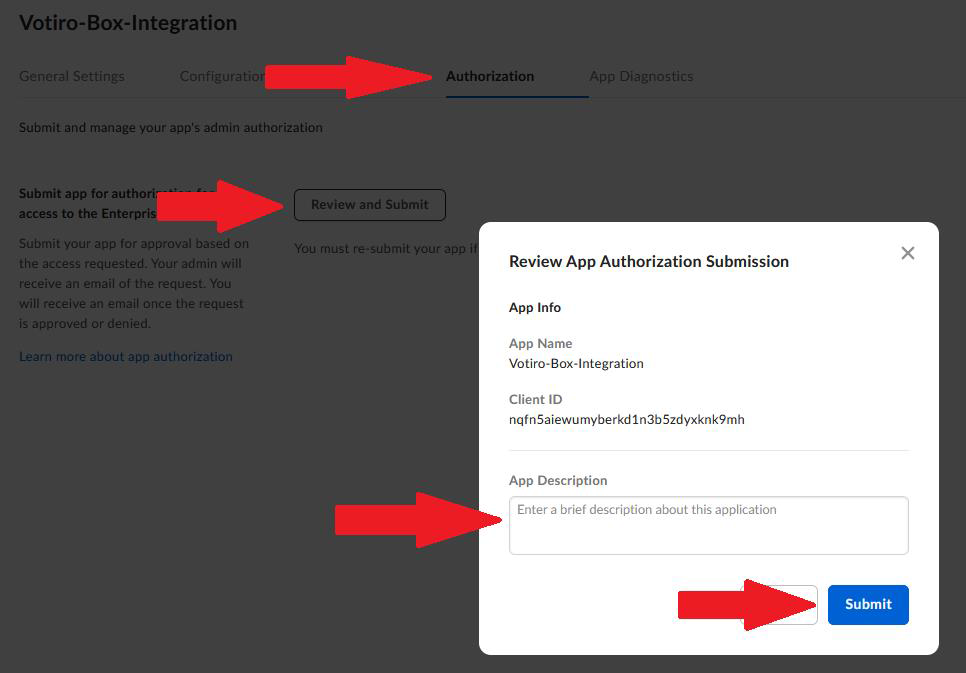
Select the Authorization tab and: |
|
a. |
Click on Review and Submit. |
|
b. |
Type an App Description
|
|
c. |
Click on the Submit button: |
|
14. |
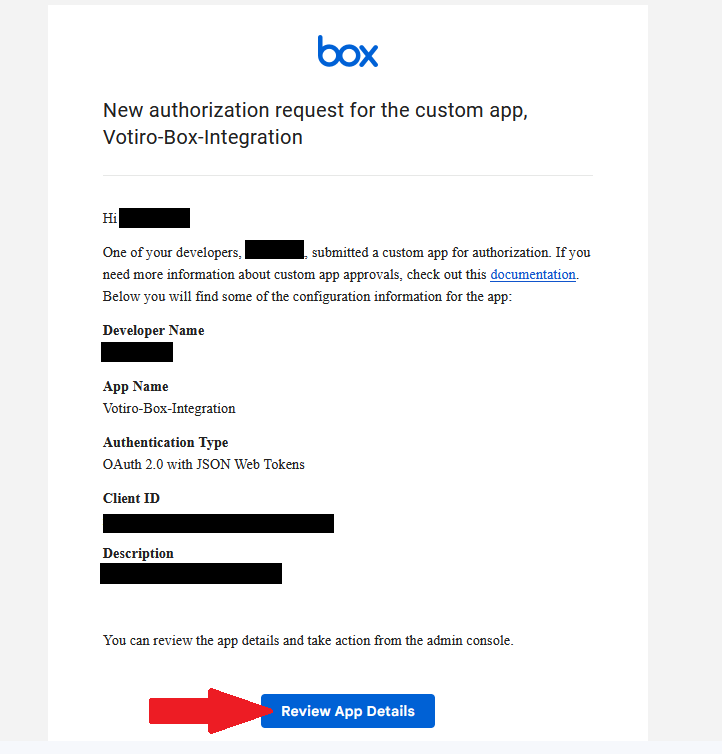
Your Box admin should receive a confirmation email, similar to the screenshot below.
Click on Review App Details: |
|
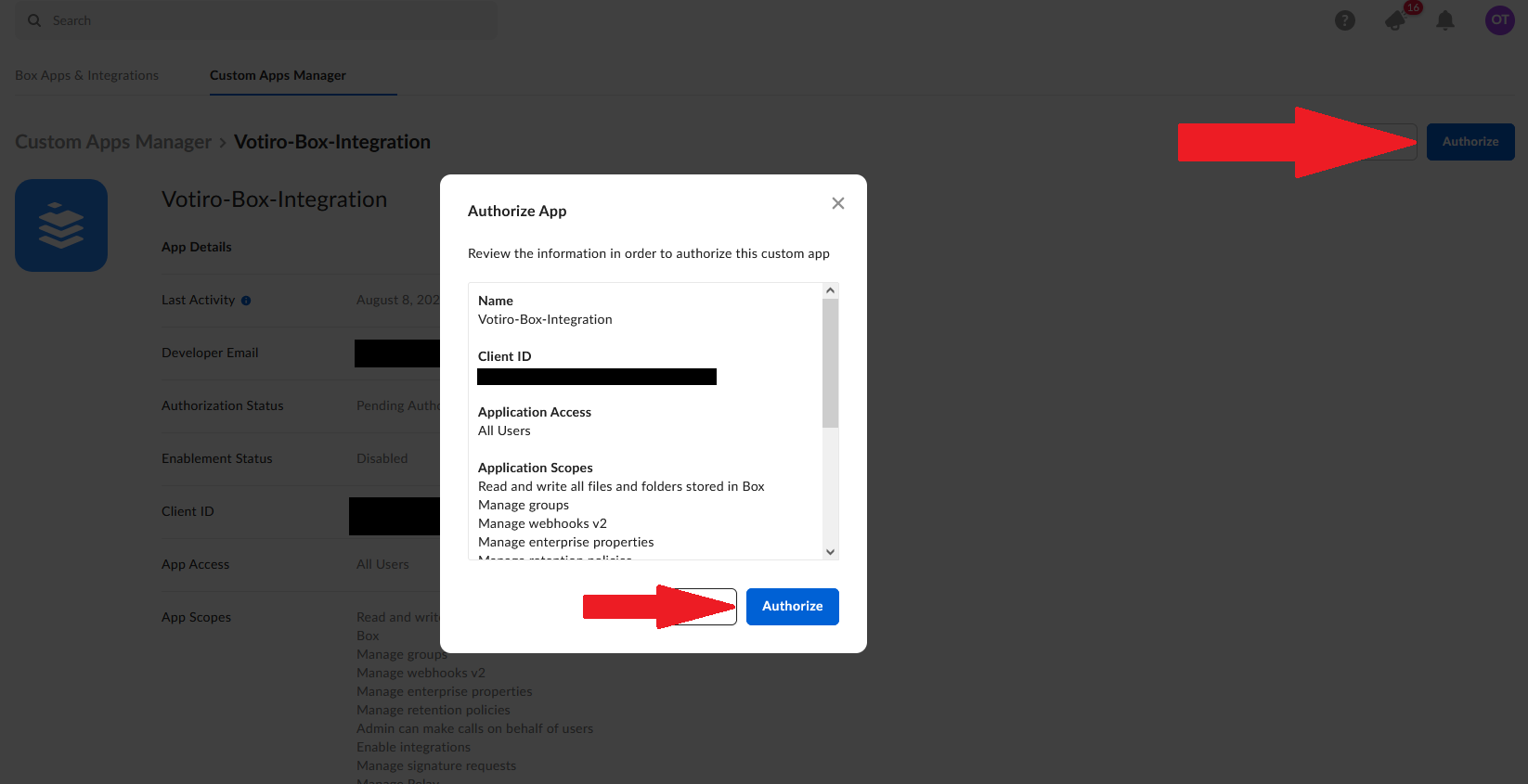
15. |
You’ll get redirected to Box.com again. |
|
a. |
Go to the Custom Apps Manager and select your new app. |
|
b. |
Click Authorize and review your app settings. |
|
c. |
Click on the Authorize button: |
|
16.
|
After the Box app is configured, you must configure it in the
Votiro
Management Dashboard, as described in the following section.
|
Configuration of the Box App in the Votiro Management Dashboard
To get to the Box page, from the navigation pane on the left, click Cloud Connectors > Box.
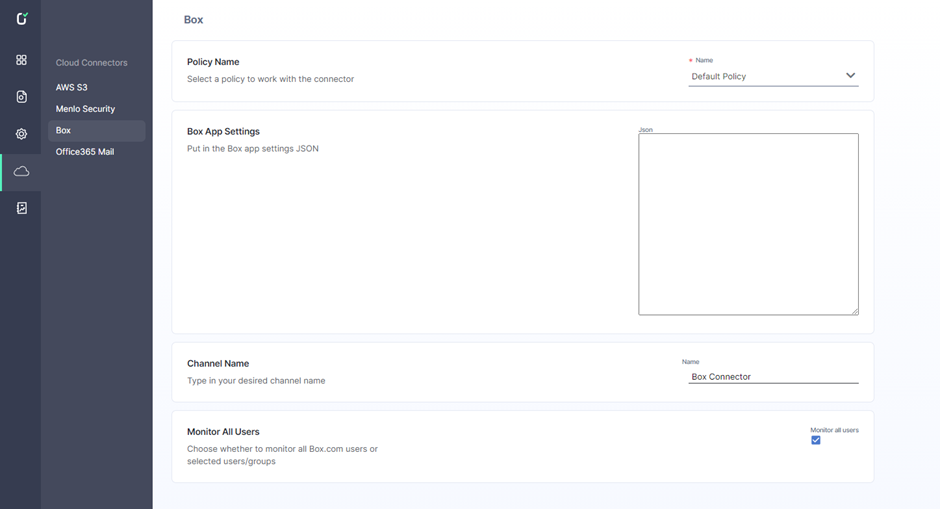
The Box page contains the following fields:
| Policy Name |
Specify a policy for the Box connector to work with. Select the
Default Policy if you have not created an alternative
policy to use.
|
| Box App Settings |
To integrate with the Box account, add the
Public/Private Keypair by pasting the content of
the JSON file you saved to your machine when creating the Custom
App in Box to integrate with
Votiro.
The keypair is located in the JSON file.
|
| Channel Name |
Specify the name of your channel. The channel name appears in the
Incidents page as the name of a connector. In the example above,
the channel name is "Box Connector".
|
| Monitor All Users |
Check this box to enable all users under the Box enterprise account
to perform sanitization when uploading files to Box. *
|
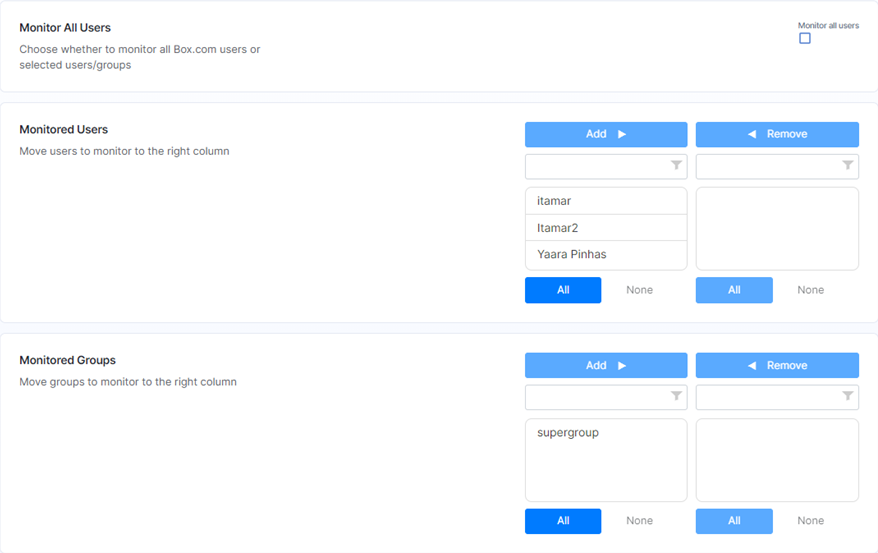
| *Monitored Users |
* displayed only if Monitor All Users is not
checked.
The left column will contain all users under the Box enterprise
account. To authorize specific users to be able to sanitize
files, select the users from the left column and click
Add. To deny sanitization authorization to specific
users, select the users from the right column and click
Remove. To add/remove all/no users, click the
All/None buttons in the respective
column.
|
| *Monitored Groups |
* displayed only if Monitor All Users is not
checked.
The left column will contain all groups under the Box enterprise
account. To authorize specific groups to be able to sanitize
files, select the groups from the left column and click
Add. To deny sanitization authorization to specific
groups, select the groups from the right column and click
Remove.
If a group is enabled/disabled for sanitization, all the group
users are enabled/disabled even if the group users were not enabled/disabled
in the Monitored Users field.
|
* If you uncheck Monitor All Users, the following options are displayed:
Box App Behavior when Uploading Files
Each file that an authorized user uploads to Box will be automatically send to sanitization. When the user uploads a file, Box will display a message:

After the sanitization is successfully completed, the original file will be replaced with the sanitized file, and Box will display a message indicating that a new version of the file was uploaded:

Box App Behavior when Versioning Files
|
n |
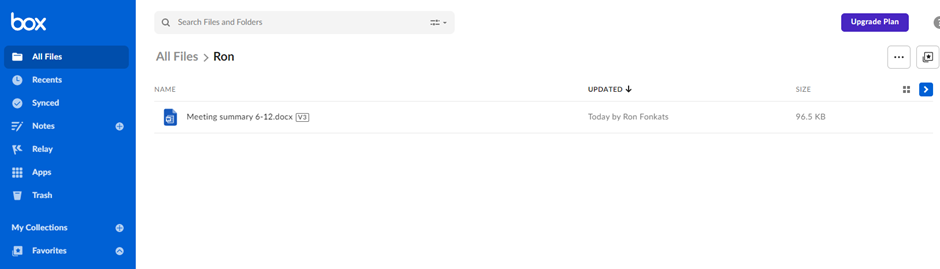
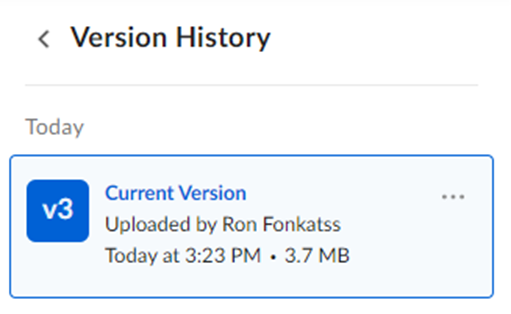
If an uploaded file was successfully sanitized, the sanitized file will be marked by V3: |
|
n |
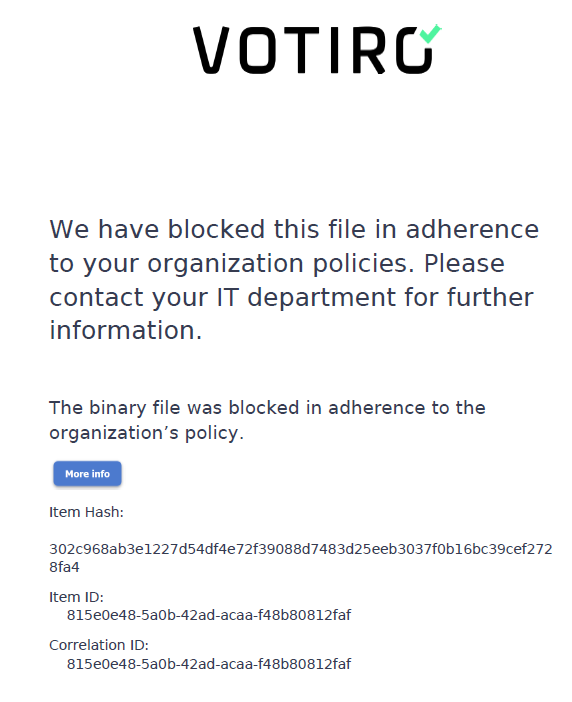
If the uploaded file was blocked, a blocked PDF file appears marked by V2: |

The contents of the blocked file PDF will be similar to:
Box App Behavior for Password Protected Files
If the user uploaded a password protected file, the original file will be replaced with a password protected blocked PDF marked by V2:

To release a password protected file that was blocked:
|
1. |
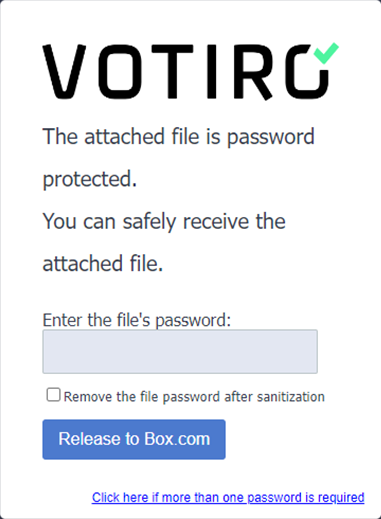
Click on I have a password in the blocked PDF. The password protected portal is displayed: |
|
2. |
Enter the file's correct password and click on Release to Box.com. Votiro displays the message: |
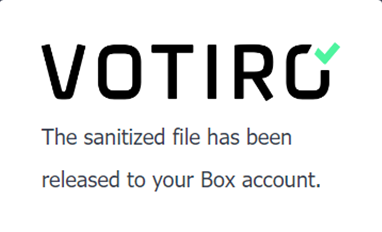
The sanitized file appears in Box marked by V3:

Limitations
Sanitization of uploaded files by external users is not supported.

Comments
0 comments
Please sign in to leave a comment.